


Every team in its own business unit.
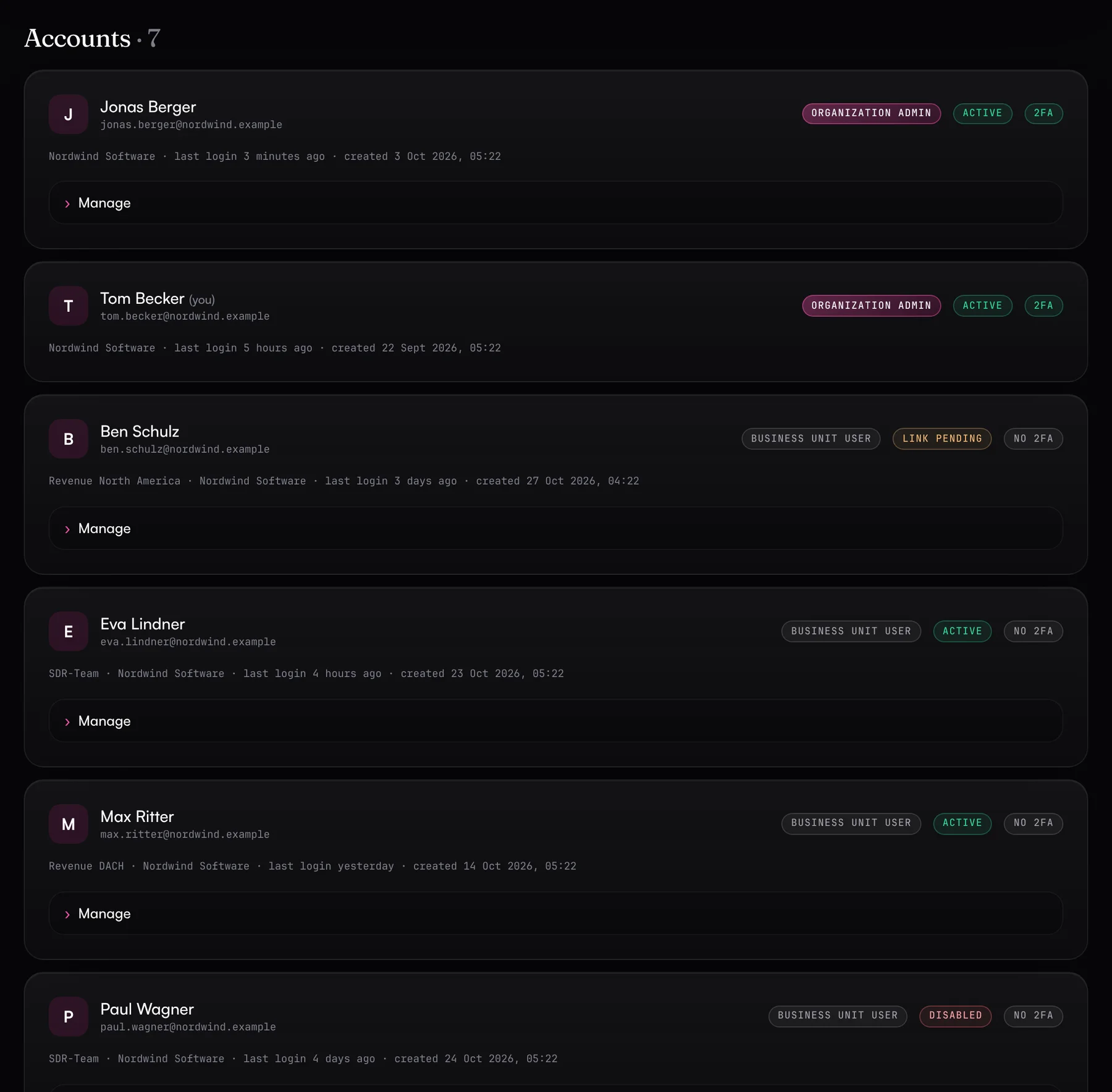
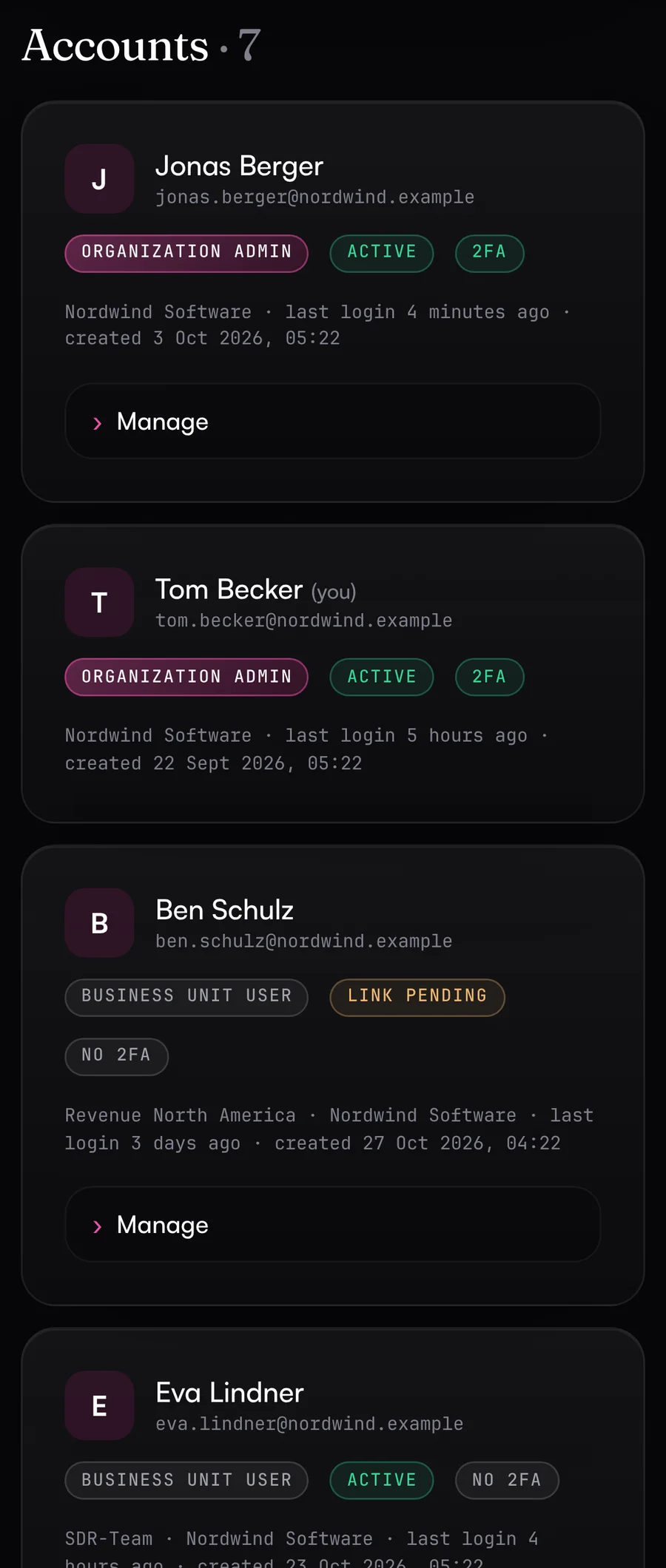
Each of your teams, product lines or regions, such as EMEA and North America, gets its own business unit with separate connections, MCP servers and log. Your RevOps team runs it centrally, and your teams work in it with separate roles. Whoever holds the admin access to a tool connects it through a link. If a connection breaks, the Data Hub sends you a new link to fix it.
- Three roles, invitation only
- Connect links with a guide per tool
- Daily check of every connection
Who has the Salesforce token, and is it still valid?
The LinkedIn access is tied to the login of someone who left your team, a token expires next week, and your pipeline report has come back empty since Tuesday. Without one place to look, you find out just before the forecast call.
What the Data Hub does.
One business unit per team, product line or region, three roles and a daily check of every connection.
- 01
Organizations, business units and users
The organization is your company, and the business units in it are teams, product lines, brands or regions. Every user only sees their own scope.
- Platform admins manage everything, including organizations and Data Hub settings
- Organization admins, for example from RevOps, manage business units, connections, approvals and users
- Business unit users, such as your demand gen team or a region's SDRs, work in exactly one business unit
- Access only by invitation link; there's no self-signup
- 02
Connect links for tool admins
The admin access to HubSpot, Salesforce or the ad accounts often sits with someone other than you. Instead of trading passwords, you send them a link. They sign in with each vendor or enter an API key, with a short guide under every tool. The link is valid for 1 to 30 days, can be revoked at any time and only replaces a working connection if you explicitly allowed it. The hub reports every replacement.
- 03
Connection monitoring
Every morning the Data Hub checks all connections across all business units and spots access that's about to expire. When something's wrong, you get an alert, by email with a ready-made connect link to forward to whoever holds the access. If the problem persists, a reminder follows, and you can opt into an all-clear once it's fixed.
- 04
Notifications per organization and business unit
Approvals, connection problems and hit limits go by email, Slack or Microsoft Teams to whoever is responsible. The organization and its business units set up their own channels and pick the events they want. Each level gets its messages in German or English, including a team's own Slack channel.
- 05
Usage, packages and quotas
Per business unit and calendar month, the hub counts calls, write actions, errors and Clay usage, as plain numbers. The Usage page shows every business unit in your area, and you export one month, or twelve months per business unit, as CSV. Platform admins create packages with monthly quotas and assign them to business units.
- Warning at 80 and 100 % to the channels that chose “Limits, emergency brake & quotas”
- If you want, the hub refuses further calls at 100 %, with a clear message to the agent
- Read calls keep working when only the write or Clay quota is used up
- Clay credits are read from the account balance once a day
- 06
Activity log and Coverage
Every tool call is logged with time, MCP server, tool, success or error and duration. Export the last 30 or 90 days, or everything, as CSV. The Coverage page describes each source in plain language: what an agent can read and change, and where the limits are.
What you should know.
- The hub doesn't email invitations or reset links itself. You pass them on.
- Each user belongs to exactly one level, meaning one organization or one business unit.
- Connect links grant access, so they only appear in emails and in the hub, never in Slack or Teams.
Frequently asked questions.
›Does everyone who connects a tool need a Data Hub account?
No. The connect link is all they need. Only people you invite get an account, and then they see just their own business unit.
›What if someone forwards the link?
The link can only connect the selected tools; nobody can read data through it. It only replaces a working connection if you allowed that when creating it, and every replacement triggers a notification.
›When does the hub check connections?
Every morning at 05:17 UTC. On the overview, “Check all now” runs the check right away.
›Can we track usage per team or region?
Yes. The counters per business unit and month are kept even after the activity log is deleted at the end of its retention period. The CSV export shows them split by source, for example for your internal cost allocation.
›Can I lock someone out immediately?
Yes. Deactivating blocks the login right away and ends all sessions, while the data stays. “Reset access” resets the password and two-factor authentication, for example after a lost phone.
- Security & privacyEncrypted credentials, isolated business units and hosting in Frankfurt. The Data Hub keeps no copy of your CRM or campaign data.
- Guardrails & approvalsRules, approvals and limits for agents that write to your CRM and ad accounts.
- AI clients & MCPClaude, ChatGPT, Gemini, Copilot, Grok, Perplexity, OpenClaw, n8n and others sign in and get exactly the tools you enable.
See it with your own tools.
In 30 minutes, we'll show you the Data Hub with your own tools and your use case.